
Resume and back up a run
Use the Save Data bar on your battlefield’s difficulty screen to return to an unfinished run. Back up the full game’s save folder before moving to another computer or choosing which copy to keep in a Steam Cloud conflict.
Continue from the saved wave
Section titled “Continue from the saved wave”- At the title screen, choose Play. Enter Campaign or Endless, then select the battlefield where you stopped.
- At the bottom of the difficulty screen, read the Save Data bar. It shows the battlefield, difficulty or mode, and wave number.
- Select that bar to return to the saved wave’s preparation phase. Check the field and your roster before starting the fight.
In 1.0.3, starting a fresh run on that battlefield brings up a confirmation because it replaces the saved run. This applies in Endless too. The Pause menu’s Give Up option ends the run and pays out the Originite you earned.
Find the full game’s save folder
Section titled “Find the full game’s save folder”Close the game before copying the folder. Keep the copy in a different location so that a later save cannot overwrite it.
- On Windows, press Win + R. Paste
%APPDATA%\slotbound_fulland press Enter. - On macOS, press Command + Shift + G in Finder. Paste
~/Library/Application Support/slotbound_full/and press Return.
Keep both save_fallback.dat and save_fallback.bak if present. They are the two files listed in the game’s Steam Cloud configuration.
Keep the right copy in Steam Cloud
Section titled “Keep the right copy in Steam Cloud”In the Steam Library, open Slotbound’s Properties → General to check whether Steam Cloud is enabled. If Steam reports a sync error, wait until syncing succeeds before starting the game on the other computer.
If Steam asks which save to keep, compare the timestamps with your last play session. Back up the local folder before you select a copy. Choose the save that contains the progress you want to keep.
Check your unlocks
Section titled “Check your unlocks”Start a new profile in the full game after playing the demo. The full release has its own upgrade and Collection progress.
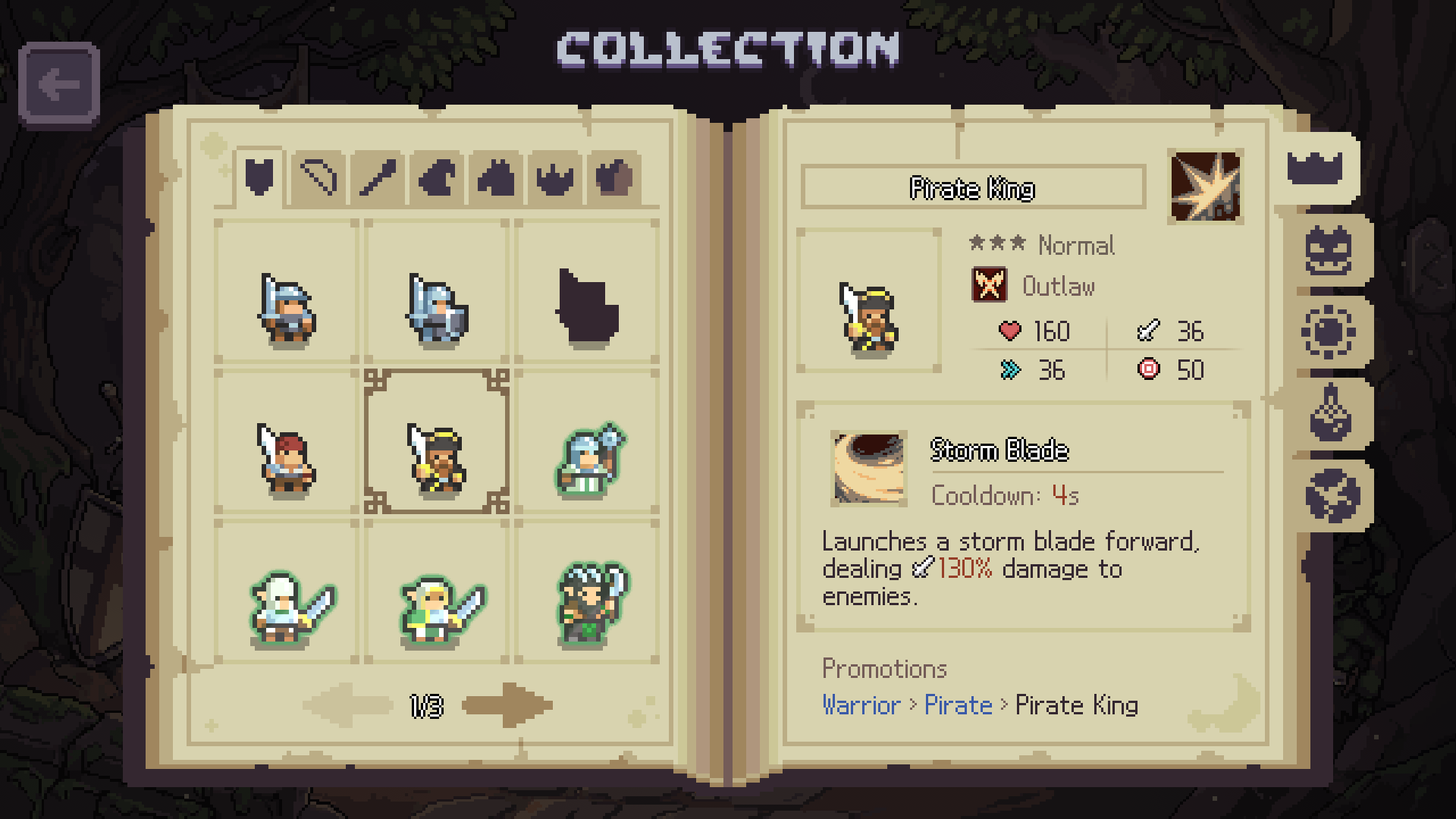
In a resumed run, open the Collection tab on the battlefield. Choose a unit class and select the flag beside the page arrows to filter by faction. Open a revealed unit to see its stats and promotion path. For the choices available as units level up, use the Units database and promotion guide.
Sources
The save bar and local paths are documented in the community save guide. The 1.0.2 Endless recording shows the Open Forest save bar before wave 51. Slotbound.net’s save guide · Dabble’s recording
Optima Arch documented the replacement prompt, Give Up and the Collection changes. The developer discussed demo progress on Steam. 1.0.3 update notes · Demo save discussion
Steam documents conflict handling, and its app configuration lists the synced files. Steam Cloud help · Slotbound’s Steam Cloud file rules
The Collection screenshot and key art come from Optima Arch. Collection screenshot · Press kit
- Slotbound.net save files guide — Documentation · guide-updated-2026-11-23
- Slotbound Steam Cloud file rules — Documentation · accessed-2026-11-23
- Steam Cloud help — Documentation · accessed-2026-11-23
- Developer reply about demo saves — Documentation · accessed-2026-11-23
- Slotbound 1.0.3 update — Documentation · accessed-2026-11-22
- Dabble’s Open Forest Endless run through wave 100 — Observed in-game · 1.0.2-stream-verified-2026-11-23
- Optima Arch’s Slotbound press kit — Documentation · accessed-2026-11-23
Unofficial fan wiki, independent of Optima Arch. Game content belongs to its owners.
Comments & feedback
Share a tip or suggest a correction. Comments are public. Guest names are unverified; verified accounts show their public name. All language pages share this discussion. Please keep personal information private.