

Install and manage Workshop mods
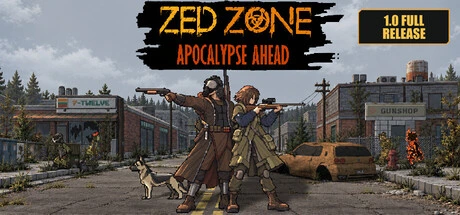
To use a ZED ZONE Workshop mod, subscribe to it on Steam and restart ZED ZONE. Then check it in the main-menu MOD Manager. The game loads subscribed mods on the next launch, and the manager lets you enable or disable them.
Check which mods loaded
Section titled “Check which mods loaded”- After subscribing, fully close and relaunch the game so it can load the new Workshop content.
- From the main menu, open MOD Manager.
- Find the mod and check that it is enabled. Mods are enabled by default, but you can switch one off here.
The developer’s 1.0.18 update adds visibility for subscribed content the game did not load and marks local MODs in the manager. If a subscribed entry is shown as unloaded, check the MOD Manager and Steam subscription, restart the game, and make sure the mod supports the current game version. The manager also helps distinguish a local mod from Workshop content.
Install a mod file manually
Section titled “Install a mod file manually”For a manual install, open the game’s installation folder and place either the .zedmod file or the whole mod folder under <game folder>/Mods/<type>/. Create Mods and its matching type subfolder if either is missing. Choose the folder matching the mod type: RangedWeapons, MeleeWeapons, Ammo, Magazine, GunPart, Arrow, Food, Container, or FaceMask. In 1.0.14, use HeadDecoration for head-decoration mods; check the mod’s instructions for later versions. For mod packs, use ModPacks. Restart the game, then check the MOD Manager. This does not mean every third-party DLL mod is supported.
Create a supported item MOD
Section titled “Create a supported item MOD”From the main menu, open MOD Editor, choose New, and select a supported item type. In the editor, import a similar vanilla item as a starting point, then adjust its parameters, texture and localized text in the matching panels. Save the MOD and test it in game. If you want to share it, open the Workshop Upload window from the editor and upload it there. For type-specific fields and limits, see the developer manual in Sources. In 1.0.14, the editor lists a head-decoration option but no face-mask option, although face-mask mods can still be loaded. In later versions, check the editor’s type list.
Play with mods in co-op
Section titled “Play with mods in co-op”Since 1.0.16–1.0.17, room details show the host’s MOD information. Supported host mods sync automatically when a guest joins; if the game prompts you to download a mod, follow the prompt. If the room reports missing or unloaded content, check the MOD Manager and restart after subscribing. See Play ZED ZONE in co-op for room setup and host-owned saves.
Sources
Cover: Steam store artwork. Developer MOD support announcement · MOD manual: overview and installation · Developer 1.0.18 patch notes · Developer launch trailer: watch on YouTube
- Developer MOD manual: overview and installation — Documentation · main (accessed 2026-11-15)
- Developer MOD manual: overview and installation (Simplified Chinese) — Documentation · main (accessed 2026-11-15)
- Developer announcement: MOD support — Documentation · MOD support announcement
- Developer announcement: ZED ZONE 1.0 — Documentation · 1.0
- Developer patch notes: 1.0.16–1.0.17 — Documentation · 1.0.16–1.0.17
- Developer patch notes: 1.0.18 — Documentation · 1.0.18
- ZED ZONE MOD loader root-path runtime trace — Extracted data · 1.0.14
- Official Steam cover artwork — Documentation · 2026-11-11

Unofficial fan wiki, not affiliated with Leven Liu / INDIECN. Game content belongs to its owners.
Comments & feedback
Share a tip or suggest a correction. Comments are public. Guest names are unverified; verified accounts show their public name. All language pages share this discussion. Please keep personal information private.